Eclipse Web Tools Platform 1.5 - New and Noteworthy

Eclipse Web Tools Platform 1.5 - New and Noteworthy | |
Structured Source Editing | |
| Code folding |
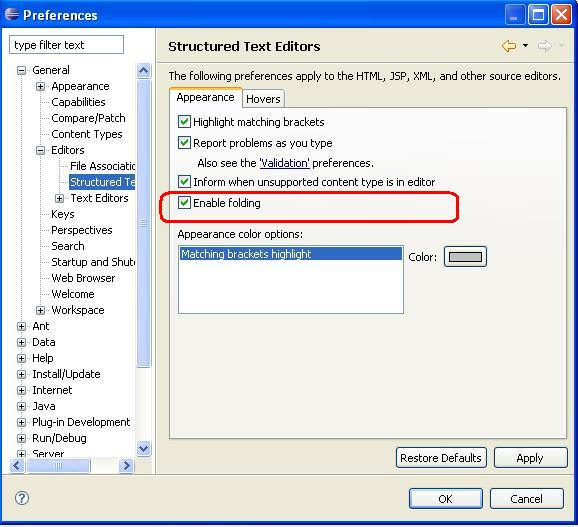
Code folding support has been added to the XML, HTML,
JSP, and CSS editors. To enable code folding, check the
"Enable folding" checkbox located on the
Structured Text Editors
preference page's
Appearance
tab.
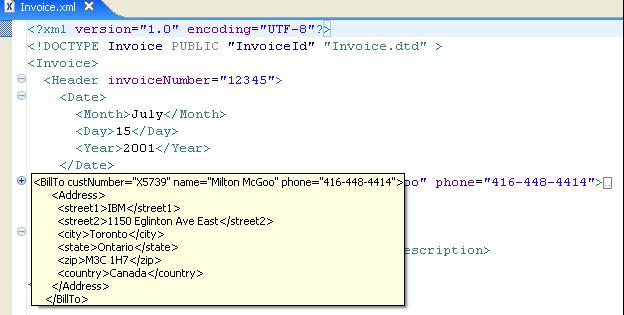
 When enabled, each editor will automatically create foldable areas where supported.
|
| Spell-checking |
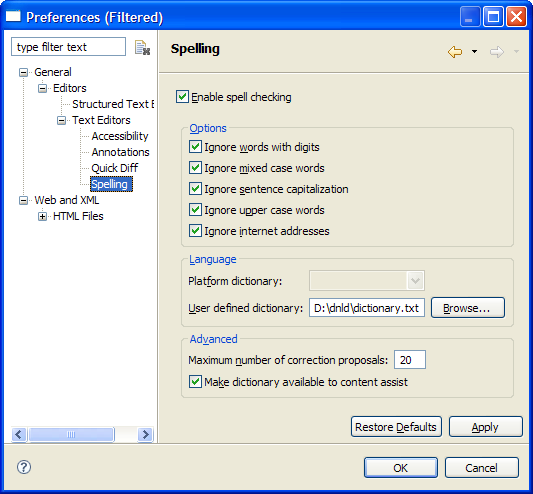
Spell-checking support has been added to the WTP
source editors. After enabling it and specifying a
dictionary on the Text Editors
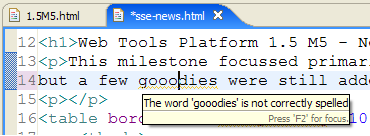
Spelling preference page, spelling errors will be
displayed in the source when editing. Eclipse does
not currently include any dictionaries, although
contributions would be welcomed. Dictionaries for
the default spelling engine can be obtained from
http://wordlist.sourceforge.net/.
|
XSD | |
| Updated Design View |
The XML Schema Editor has changed its graphical visualization to provide a
'type-oriented' view of an XML Schema. A type is displayed as a box-like
figure. If the type contains elements and attributes, these are listed as fields
within the box. In the WTP 1.0 version of the editor, attributes of a
complex type are shown in the properties page so now, they are more easily accessible.
The 'focus object' is the primary object in the view. (To make an object the focus object, see the Navigation section below). If the focus obect is a type, its inherited type will be displayed above the figure. If the focus object contains elements or attributes, their references will be displayed to the right of the focus object. 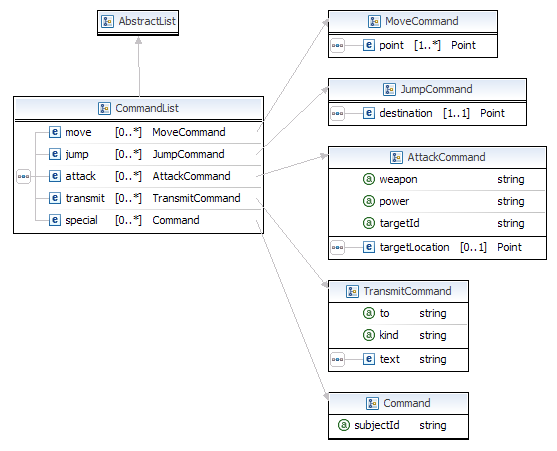
|
| Refactoring |
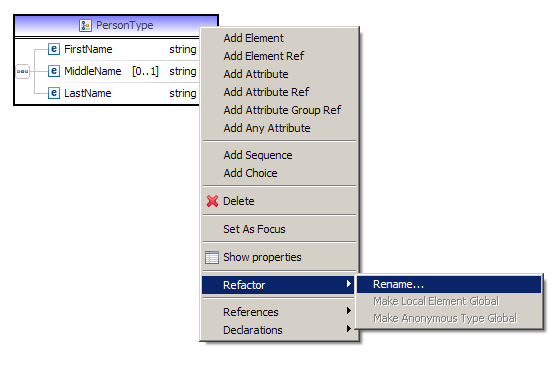
In WTP 1.5, there is inter-file refactoring in addition to pre-existing intra-file refactoring support.
This means that if you rename a complex type, any references to it from other schemas in the
current project or workspace will be updated.
|
| Navigation |
To drill down to the details level of a component or make it the 'focus object'
in the graph view, double click on the object from the top level index view of the
Schema, or click on the the object in the outline view. Click the
Back to Schema button to switch back to the schema index view.

If you are already in the details view, and there are references to other complex types, you can double click on any of the complex types to make it as the focus object in the graph page. Select the back and forward buttons in the navigation framework to move between contexts. 
The editor has hyperlink support in the source view. Hold down the Ctrl key and move the mouse pointer over some reference (ie. reference to some other type, or other schema), and a link appears. If you mouse click on the link, context changes to that reference. 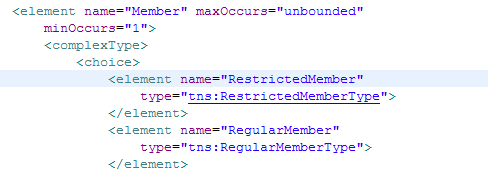
|
| Browsing for types and elements |
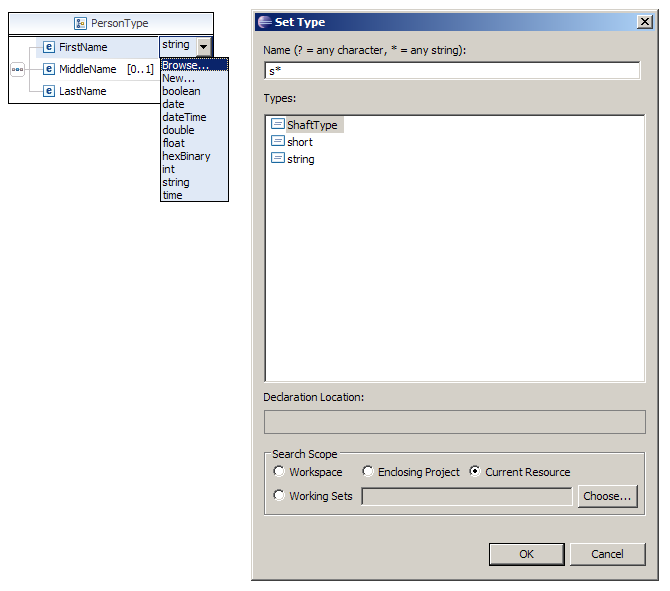
Select the Browse... action to invoke the new Set Type dialog where you
can choose a type from the current schema, or any schema in the current project or
workspace. Once you've chosen the type, and if it belongs to some external schema,
an import will be automatically added for you. Similarly, you can browse for elements
when editing element references.
|
| Properties - Simple Type Constraints |
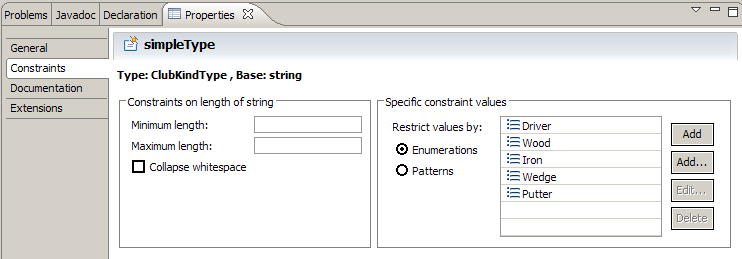
The property sheet for simple types have been redesigned. It is more compact
and more intuitive to use. If the built-in string type is too general for your
purposes and you need to restrict the values, enter a min or max length value and
an anonymous simple type will be automatically created for you. Enumeration
and pattern facets can be added from the right side of this page.
|
| Extensions |
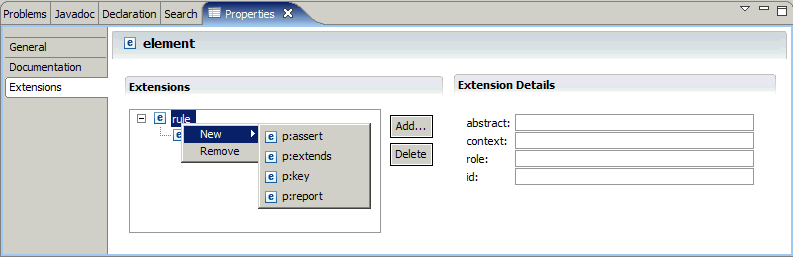
You can provide specialized extension information to your schemas via the extensions
tab of the properties view. Use the 'Add..' button to choose from categories of available extensions.
Then use the Tree view and the details view to edit the extension information.
|
DTD | |
| Property Sheets |
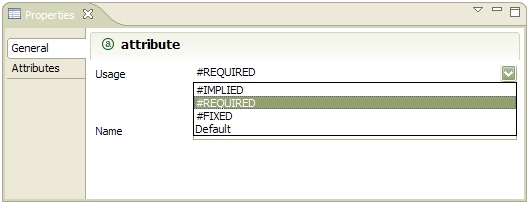
Property Sheets have been added the DTD editor to
help ease the task of creating and editing DTDs.
|