
org.eclipse.jdt.astview - AST View
Purpose
A view to visualize the AST (abstract syntax tree) of a Java file open in the editor. Navigate from text selection to AST nodes and from nodes to selections. Show bindings and compare them.
Install
Update Site:
- http://www.eclipse.org/jdt/ui/update-site/content
Source:
-
Source is included in the plugin archives or available via
web or via
Project:
org.eclipse.jdt.astview
Manual Install:
- for Eclipse 2021-12 and higher org.eclipse.jdt.astview_1.5.0.202111291414.jar (copy to 'dropins' directory)
- for Eclipse 2020-12 and higher org.eclipse.jdt.astview_1.4.500.202012071300.jar (copy to 'dropins' directory)
- for Eclipse 2020-06 and higher org.eclipse.jdt.astview_1.4.400.202006151600.jar (copy to 'dropins' directory)
- for Eclipse 2019-12 and higher org.eclipse.jdt.astview_1.4.200.201912041606.jar (copy to 'dropins' directory)
- for Eclipse Luna (4.4) and higher org.eclipse.jdt.astview_1.4.0.201906121540.jar (copy to 'dropins' directory)
- for Eclipse Luna (4.4) and higher org.eclipse.jdt.astview_1.1.9.201406161921.jar (copy to 'dropins' directory)
- for Eclipse 3.7.1 and higher org.eclipse.jdt.astview_1.1.8.201108081127.jar (copy to 'dropins' directory)
- for Eclipse 3.5 and higher org.eclipse.jdt.astview_1.1.7.201103211622.jar (copy to 'dropins' directory)
- for Eclipse 3.4 M6 and higher org.eclipse.jdt.astview_1.1.6.200803260035.jar (copy to 'dropins' directory)
- for Eclipse 3.4 M3 and higher org.eclipse.jdt.astview_1.1.5.200710301359.jar (copy to 'plugins' directory)
- for Eclipse 3.3.*: org.eclipse.jdt.astview_1.1.4.jar (copy to 'plugins' directory)
- for Eclipse 3.2.*: org.eclipse.jdt.astview_1.1.3.jar (copy to 'plugins' directory)
- for Eclipse 3.1.*: org.eclipse.jdt.astview_1.0.10.jar (copy to 'plugins' directory)
- for Eclipse 3.0.*: org.eclipse.jdt.astview_1.0.1.jar (extract into 'plugins' directory)
Usage
- Open the AST view
- from the view menu: Window > Show View > Other..., Java > AST View
- via shortcut: Alt+Shift+Q, A
- Open a Java file in the editor
- Click on 'Show AST of active editor' (
 ) to
populate the view: The view shows the AST of the file opened in the
editor and will also reveal the element corresponding to the current
text selection.
) to
populate the view: The view shows the AST of the file opened in the
editor and will also reveal the element corresponding to the current
text selection.
- Enable 'Link with editor' (
 ) to
automatically track the active editor and the selection in the active
editor.
) to
automatically track the active editor and the selection in the active
editor.
- Double click on AST nodes to get the corresponding element revealed in the editor.
- Double click again to see the 'extended range' of a node, that means the range including all comments associated with it (comment mapper heuristic).
- Open the context menu on a binding to add it to the comparison tray
- When the AST's underlying document has been changed use
'Refresh' (
 ) to update the AST.
AST View Elements
The AST view shows the following nodes:
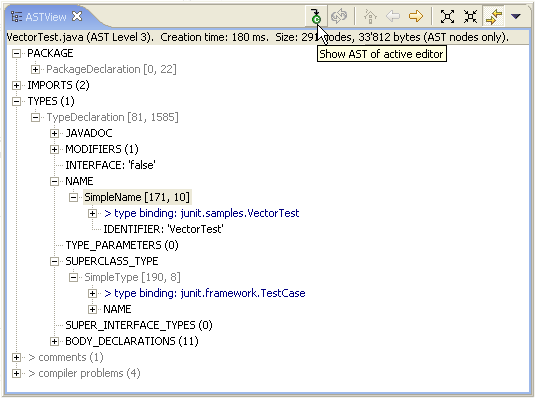
- AST nodes are shown in gray color and with source range information. Children of AST nodes are the node properties.
- node properties have names that are all all capitalized. Node properties represent lists of child nodes, a child node or a primitive node attribute (String, int, or boolean).
- bindings are shown in blue. Only selected bindings are shown initially. The rest can be toggled via view menu > Hide Non-Relevant Attributes
Advanced Features
- You can toggle between the AST Level 2 and AST level 3 in the view menu (triangle). AST level 3 is the extended and modified AST that includes the new 1.5 language constructs. Note that the AST level 3 is only available in 3.1 and later builds
- You can choose to show or hide bindings in the view menu
- You can choose the method to generate an AST in the view menu
- You can choose 'Add to Comparison Tray' in the context menu of a binding. This moves the binding to a special area in the view. When you select another binding in the tree, the comparison tray shows various relationships between the selection and the chosen binding
Comments and Requests
- Comments to markus_keller[at]ch.ibm.com
- Bugs / enhancement requests go to the JDT/UI component (preferably with patches;-)
-
Thanks and credits go to Christian Hauser: The current AST view plug-in
is based his AST view implementation from the Zuerich Code Camp. Thanks
a lot!
Martin Aeschlimann productized and maintained the plug-in in the first few years.